5 min read
Device Highlights: Spotlight Your App's Best Features

Dan DeaconuCEO & Designer, AppMockUp
- New Feature
- Design Enhancement

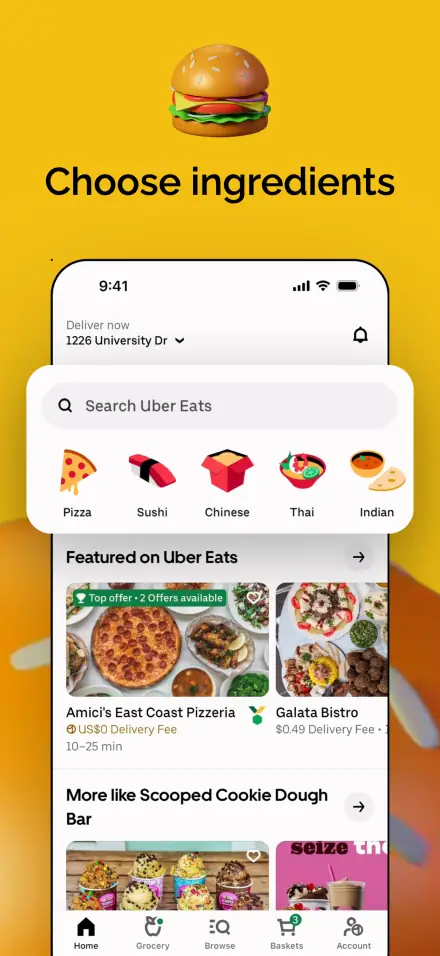

Creating app store screenshots that truly capture attention has always been a challenge. You have seconds to communicate your app's value, but traditional screenshots often leave key features buried in visual noise. We've solved this with Device Highlights - a revolutionary way to spotlight your app's most compelling features.
Beyond Basic Screenshots
Users scan app store screenshots quickly, and if they can't immediately understand what makes your app special, they move on. Traditional screenshot tools treat your app images as static, unchangeable assets.
This creates several critical problems: important features get lost in busy screenshots, generic callouts don't match your app's design language, static presentations fail to tell compelling stories, and one-size-fits-all solutions don't work across different devices.
Device Highlights solve these challenges by working directly with your app's visual elements, maintaining design consistency while providing powerful emphasis tools.
How Device Highlights Work
The concept is elegantly simple: select any region from your device screenshot, and it becomes an independent design element. This cropped section can then be positioned anywhere in your composition, scaled to the perfect size, and enhanced with professional visual effects.
The Creation Process:
1. Select your source - Start with any device screenshot in your project
2. Define the crop area - Choose exactly which UI elements to highlight
3. Position and scale - Place your highlight for maximum visual impact
4. Apply effects - Add shadows, corner radius, strokes, and color adjustments
5. Fine-tune - Adjust opacity, rotation, and layering for perfect integration
Every highlight maintains a live connection to your original screenshot while giving you complete creative control over its presentation.
When to Use Device Highlights
Feature Showcases
Perfect for drawing attention to your app's signature features. That innovative gesture control? Extract it and scale it up. Your beautifully designed data dashboard? Crop the chart section and position it prominently.
Step-by-Step Tutorials
Create visual workflows by highlighting sequential UI interactions. Show users exactly where to tap, swipe, or navigate through your app's onboarding process.
A/B Testing Visuals
Compare different design approaches by highlighting the same UI element across different versions. Showcase before-and-after improvements or alternative design directions.
Marketing Materials
Extract key visual elements for use in marketing collateral. Your app's most compelling interface elements can now be repurposed across different marketing contexts while maintaining perfect visual fidelity.
Advanced Styling Capabilities
Device Highlights go far beyond simple cropping. Each highlight becomes a fully customizable design element with professional-grade styling options.
Visual Effects
Corner Radius - From subtle rounding to bold pill shapes, with individual corner control
Drop Shadows - Realistic depth with precise control over distance, blur, and color
Stroke Options - Clean borders or hand-drawn aesthetics to match your brand
Opacity Control - Create layered compositions with varying transparency levels
Color Adjustments
Brightness and Contrast - Ensure your highlights stand out against any background
Hue and Saturation - Color-match highlights to your overall design theme
Real-time Preview - See every adjustment instantly as you work
Transformation Tools
Precise Positioning - Percentage-based positioning relative to your device layout
Scale Control - From subtle 80% sizing to dramatic 200% emphasis
Rotation - Add dynamic angles for more engaging compositions
Aspect Ratio - Maintain proportions or stretch for creative effects
Workflow Integration
Device Highlights integrate seamlessly into your existing AppMockUp Studio workflow. The familiar layer management system treats each highlight as an independent element, giving you complete control over ordering, visibility, and organization.
Layer Management
- Drag-and-drop reordering for perfect visual hierarchy
- Individual visibility controls for easy comparison testing
- Descriptive labeling system to keep complex projects organized
- Duplication for consistent styling across multiple highlights
Smart Positioning
All highlights use a device-centric positioning system. This means when you rotate or scale your device mockup, highlights maintain their relative positions automatically. No manual repositioning required.
Best Practices for Maximum Impact
Strategic Selection
Choose highlights that tell a story. Focus on elements that differentiate your app from competitors or demonstrate core value propositions. Less is often more – a few well-chosen highlights are more effective than highlighting everything.
Consistent Styling
Establish a visual system for your highlights. Use consistent corner radius, shadow styles, and scaling across related callouts. This creates visual coherence and professional polish.
Logical Positioning
Place highlights where they enhance rather than distract from your main message. Consider the natural reading flow and use highlights to guide users through your app's narrative.
The power of Device Highlights lies in their ability to create sophisticated visual presentations without requiring advanced design skills. Focus on creative decisions, not technical implementation.
Professional Results, Simplified Process
The system handles complex calculations for positioning, scaling, and effect rendering, allowing you to focus on creative decisions rather than technical implementation.
Key Benefits:
- Time Efficiency - Create compelling callouts in seconds, not minutes
- Design Consistency - Highlights use your actual app interface, ensuring perfect brand alignment
- Export Quality - All effects render at full resolution for crisp, professional results
- Flexible Composition - Easy repositioning and restyling as your design evolves
Getting Started
Device Highlights are available now in AppMockUp Studio, with no account required and completely free to use. The feature builds on our existing device layer system, so if you're already familiar with AppMockUp Studio's interface, you'll find highlights intuitive and immediately useful.
To create your first highlight:
- Load any device screenshot in your project
- Look for the "+" button in the Highlights section
- Define your crop area using the interactive selection tool
- Apply your preferred styling effects
- Position and scale for maximum impact
Whether you're showcasing a groundbreaking interface innovation or simply want to ensure users notice your app's best features, Device Highlights provide the tools to create presentations that truly connect with your audience.
The Future of App Store Presentation
Device Highlights represent a fundamental shift in how we think about app store screenshots. Instead of static presentations, you're now creating dynamic visual stories that can adapt and evolve with your app's development.
This capability opens new possibilities for app marketing:
- Living Documentation - Screenshots that grow with your app
- Contextual Emphasis - Different highlights for different audience segments
- Rapid Iteration - Quick updates when features change
- Cross-Platform Consistency - Maintain visual coherence across different device formats
The future of app store screenshot creation continues to evolve, and with Device Highlights, you're equipped to create compelling visual narratives that stand out in an increasingly competitive marketplace.
Transform your screenshots at studio.app-mockup.com today.
No account required.
It's fast & free.